Introduction to Python programming
Python is a high-level, interpreted, general-purpose programming language used to develop software, websites, applications, automate tasks, perform data analysis, and build artificial intelligence systems.
Python was created by Guido van Rossum and was first released in 1991.
Python is popular because its syntax is simple, readable, and easy to learn.
Features
- •Easy to Understand: Python has a simple syntax that is easy to learn and understand for those who do not have a computer science background.
- •Open Source: Python is free to use, no licensing costs involved, which encourages a wide user base and extensive development.
- •Strong Community Support: A vibrant community provides plenty of resources, tutorials and help when learners face any problems.
- •Cross Platform Compatible: Python code can run on any machine for ex windows, linux, MacOs.
- •Rich Libraries and Tools: Python has a huge amount of pre-written libraries and modules which help in speeding up development by reusing existing code.
Applications of Python
1. Artificial Intelligence (AI)
Used in machine learning, deep learning, and AI applications.
2. Scientific Research
Used in computational chemistry, molecular modelling, QSAR, and scientific calculations.
3. Web Development
Used to develop websites and web applications.
4. Data Science
Used for data analysis, visualization, and statistical calculations.
5. Automation
Used to automate repetitive tasks and processes.
Installing python:
Step 1. Open your browser and go to python.org/downloads
Step 2. Click the big yellow Download Python button. The file will download.
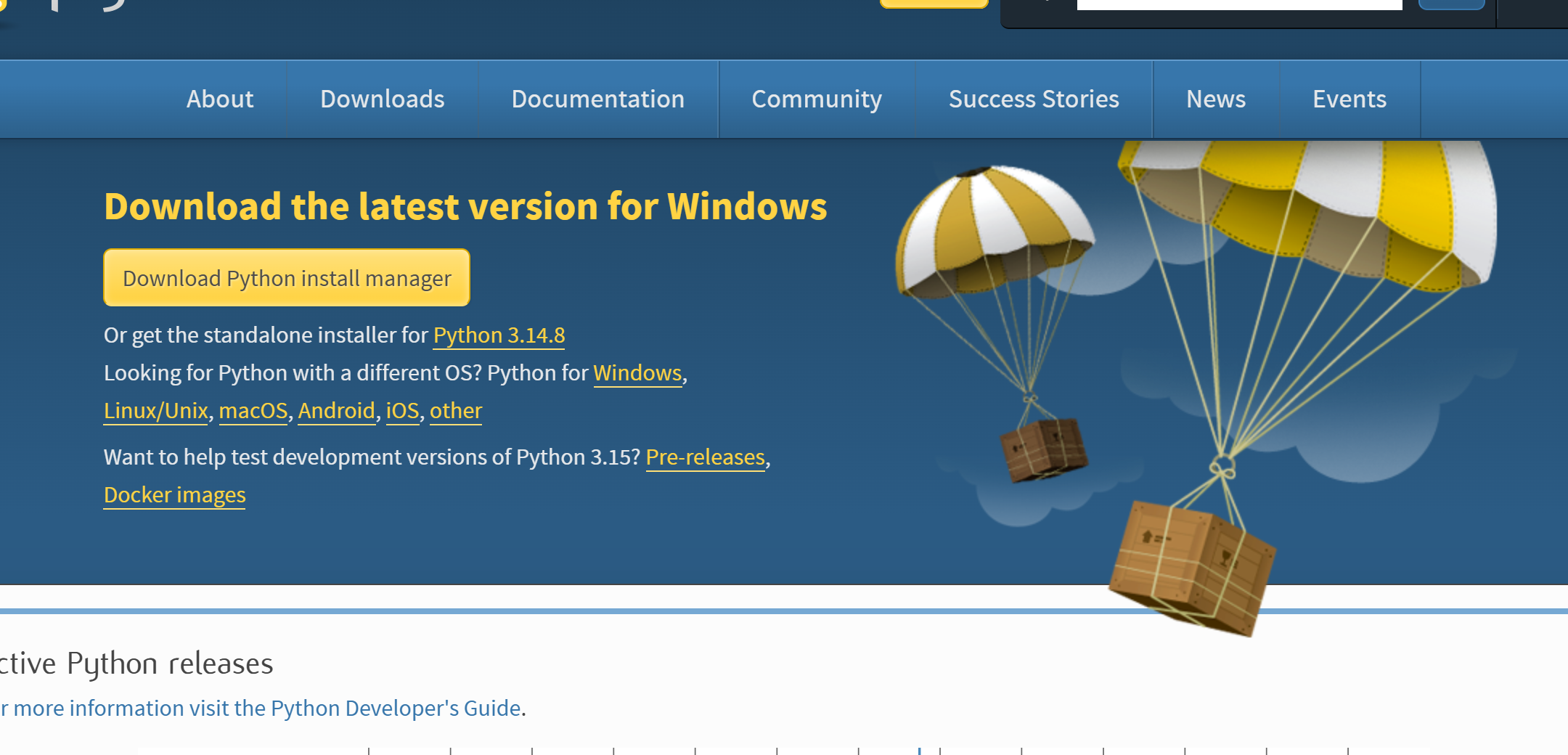
Step 3. Double-click the downloaded file to start the installer.
Step 4. On the first screen, check the box that says "Add python.exe to PATH" at the bottom.
⚠️ This one box is important. Don't skip it.
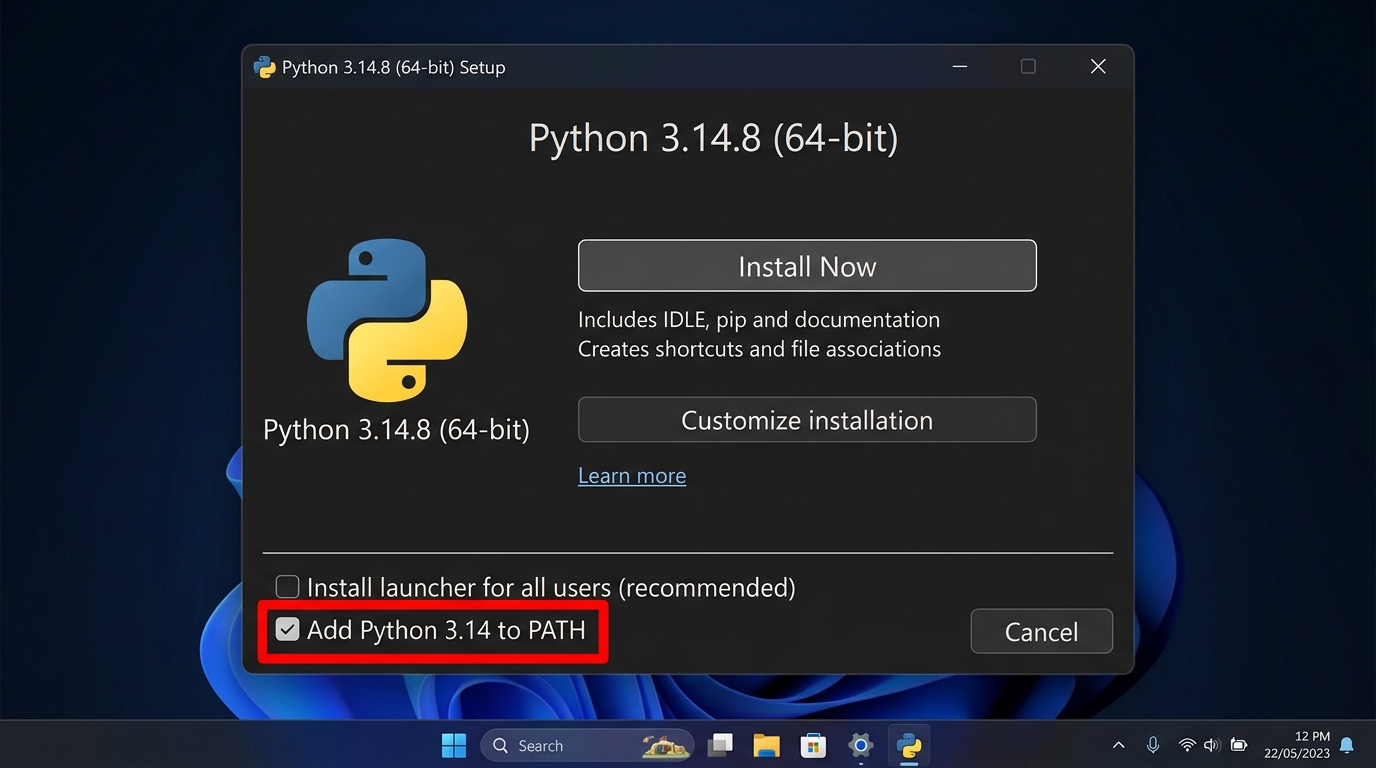
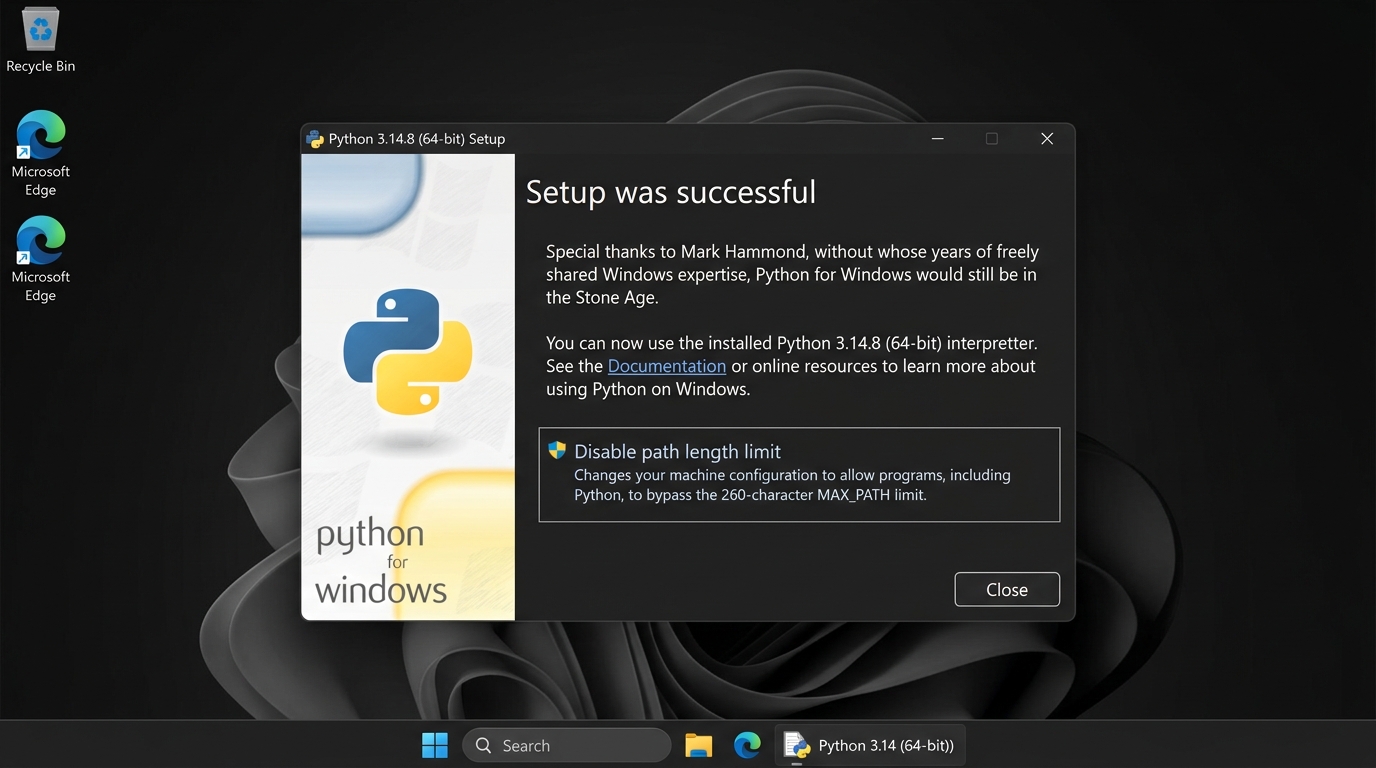
Step 5. Click Install Now. Wait for it to finish, then click Close.
Step 6. Open a new PowerShell window. (Press Win, type powershell, press Enter.)
Step 7. Type this and press Enter:
python --versionStep 8. If you see something like Python 3.13.x, it means successfully installed in your computer.
Integrated Development Environment (IDE):
“An IDE (Integrated Development Environment) is a software program where you can write, run, and fix your code.”
Instead of using three separate things — a text editor to type code, a terminal to run it, and a debugger to find mistakes — an IDE puts all of them in one window.
Installation of Jupyter Notebook:
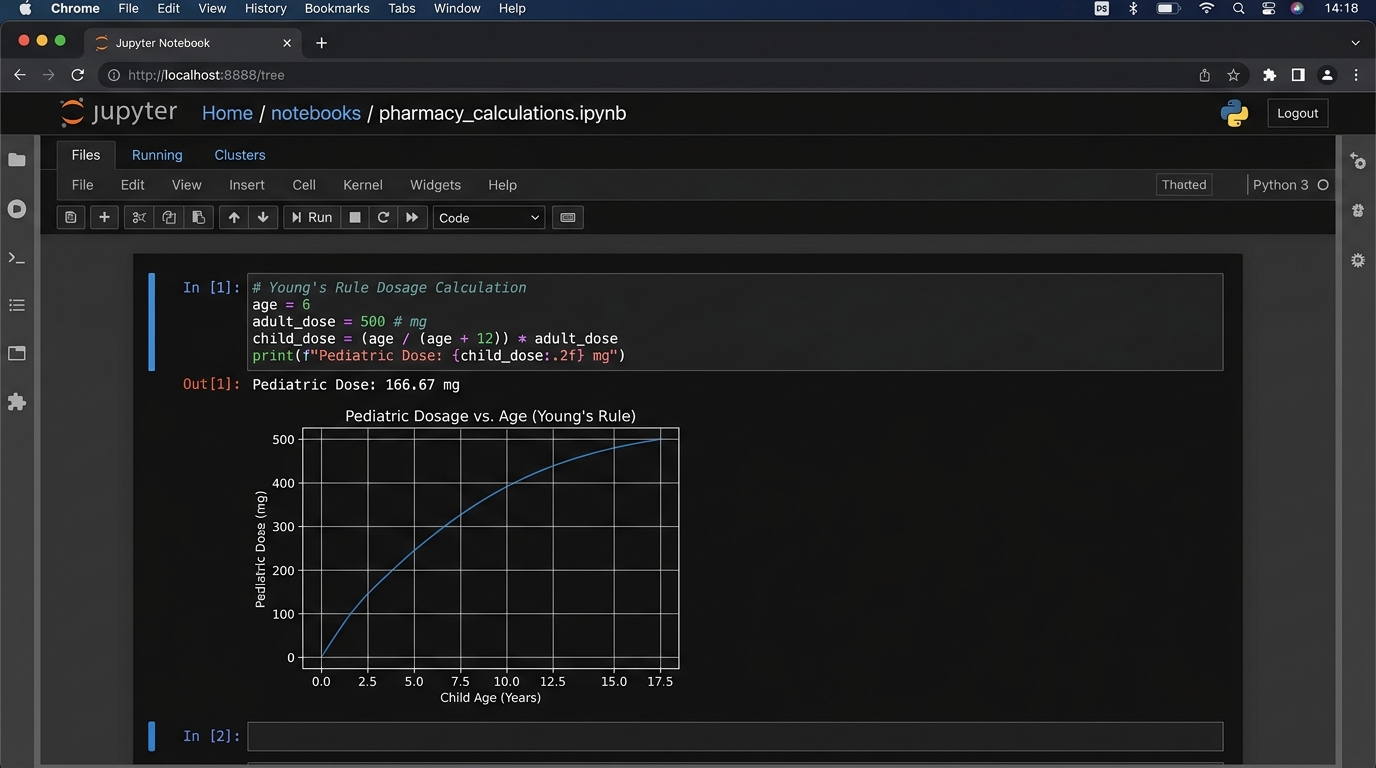
Jupyter Notebook is a web-based digital notepad where you can write code, run it line-by-line, and see results instantly in one place.
Go to anaconda.com/download and click the download button for your system.
Double-click the downloaded file.
Keep clicking Next / Install until it finishes. Don't change anything.
Open Anaconda Navigator from your Start menu. Click Launch under the Jupyter Notebook.
Installation of PyCharm:
PyCharm is a powerful, professional-grade code editor (an IDE) built specifically for Python by JetBrains.
Step 1. Go to jetbrains.com/pycharm/download
Step 2. Scroll to the Windows section. You'll see two versions:
- Professional — paid, free 30-day trial
- Community — free forever
Step 3. Click Download under Community. That's all you need.
Step 4. Double-click the downloaded file.
Step 5. Open the file then click Next, then Next again on the install location screen.
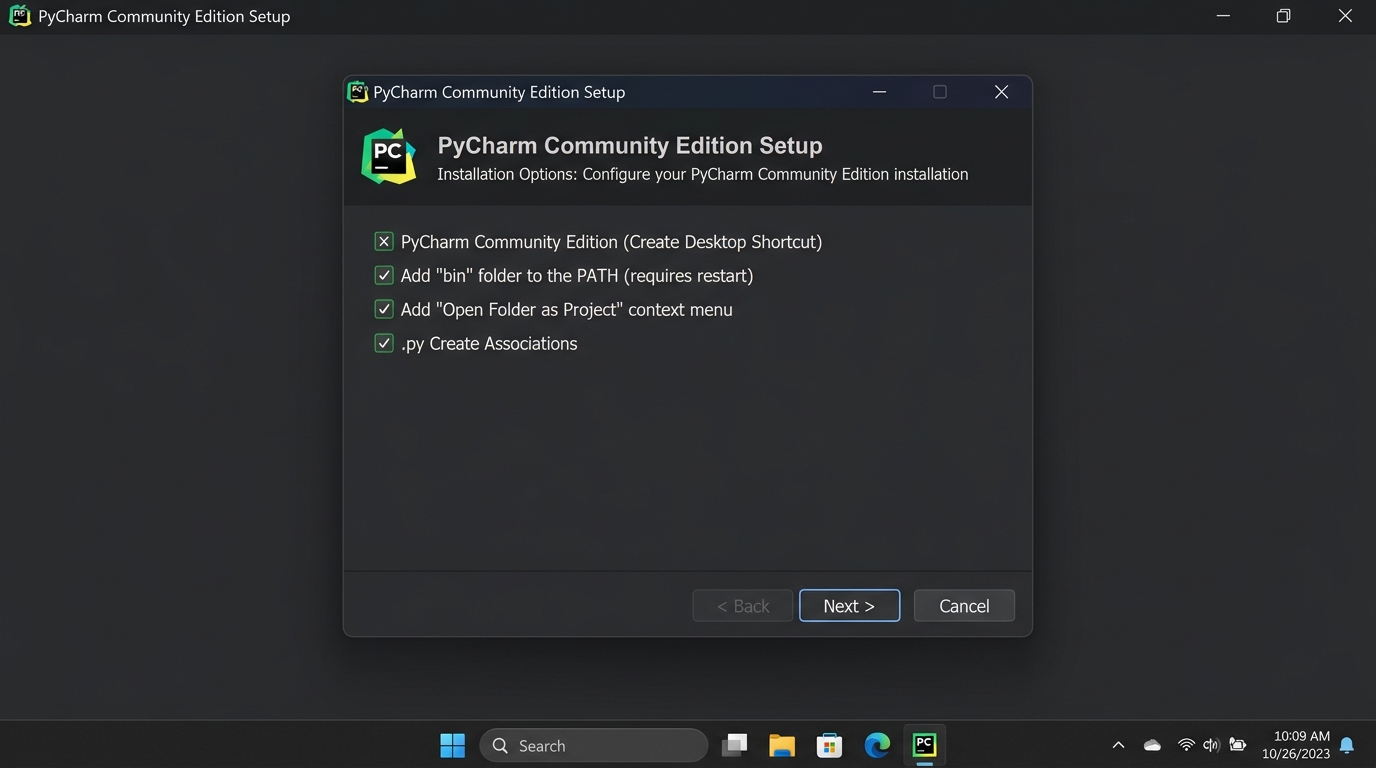
Step 6. On the options screen, check these boxes:
- Create Desktop Shortcut
- Add "bin" folder to the PATH
- .py (so Python files open in PyCharm)
Step 7. Click Next, then Install, then Finish.
VS Code:
It is free, made by Microsoft, and the most popular editor for Python.
Installation
Step 1. Go to code.visualstudio.com
Step 2. Click the blue Download for Windows button.
Step 3. Double-click the downloaded file to run the installer.
Step 4. Accept the license agreement and click Next.
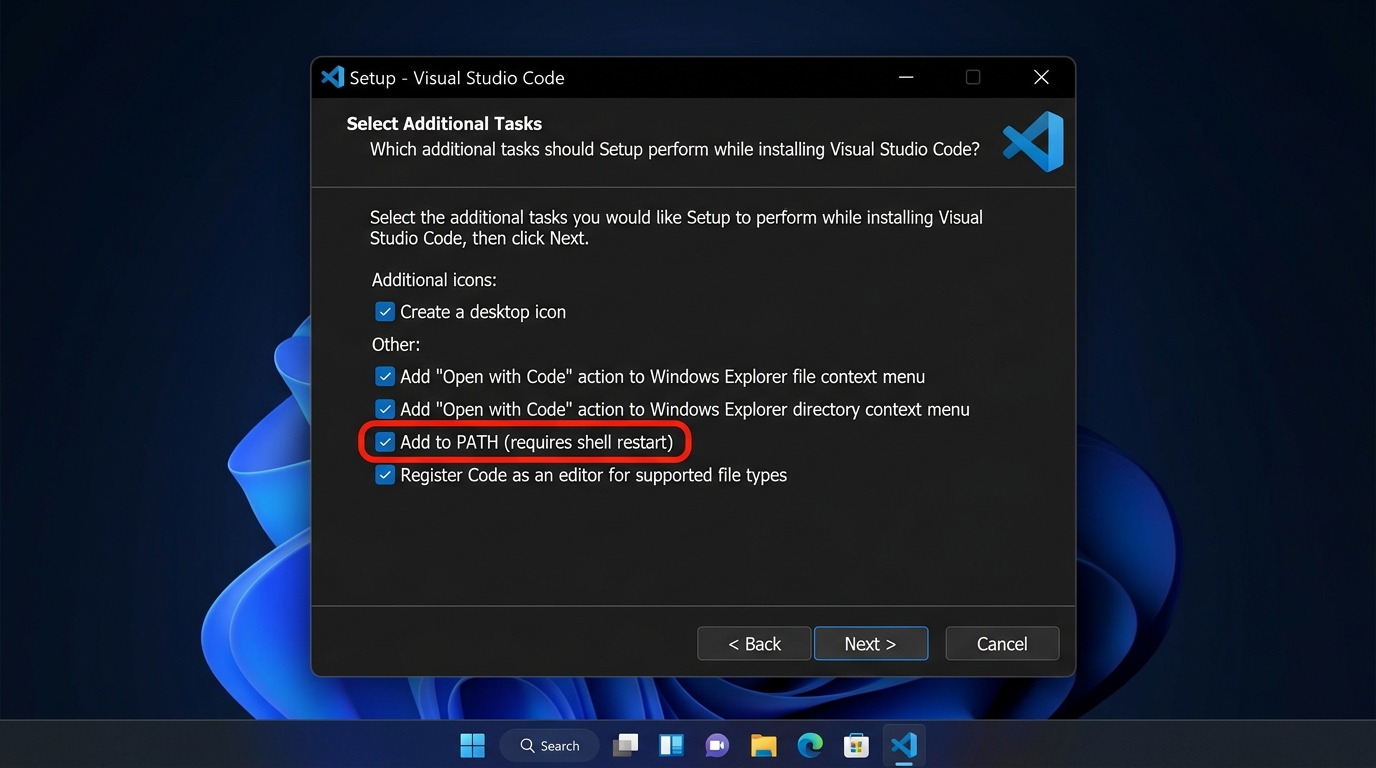
Step 5. Keep clicking Next through the screens. On the "Select Additional Tasks" page, check "Add to PATH" — it's usually checked already.
Step 6. Click Install, wait, then click Finish.
Advantages of IDEs over text editors:
A text editor only lets you type. Notepad is a text editor. An IDE gives you tools that catch mistakes and save time.
The Main Advantages
Finds mistakes before you run the code
A text editor won't tell you a variable name if it is spelled wrong. An IDE underlines it in red immediately — before you even run the program.
Autocomplete
The IDE suggests what you're typing and finishes it for you. For ex. If you Type pri and it offers print(). So you can write faster and error free.
Runs code in the same screen:
No switching to a terminal. Click Run, see the output at the bottom.
A real debugger
When code breaks, an IDE can pause the program mid-run so you can look inside variables and see exactly where it went wrong. A text editor gives you nothing — just an error message.
Understands your project
An IDE knows all your files belong together. Rename a variable and it updates everywhere. Jump to where a function is defined with one click.
Built-in terminal and Git
Version control and command line live inside the same window.